Sign In and Out
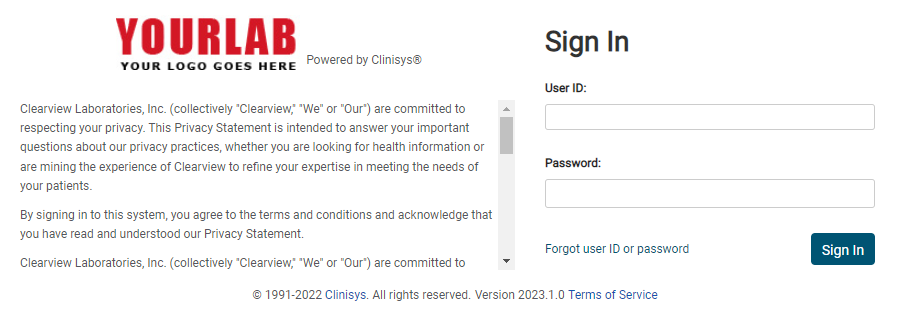
To log in to LabOnline, enter your user ID and password on the Sign In page and click the Sign in button.
Note: Email addresses can be used for a user ID. This field accommodates up to 50 characters.
Two-factor Authentication
If the laboratory has configured two-factor authentication, the two-factor authentication page will open, and you will be prompted to enter a unique code. There are two secondary authentication methods: email and Google Authenticator. If your account is configured for email authentication, a page screen similar to the following image appears. You receive a code from the email associated with your account. Enter the code and then click Verify.
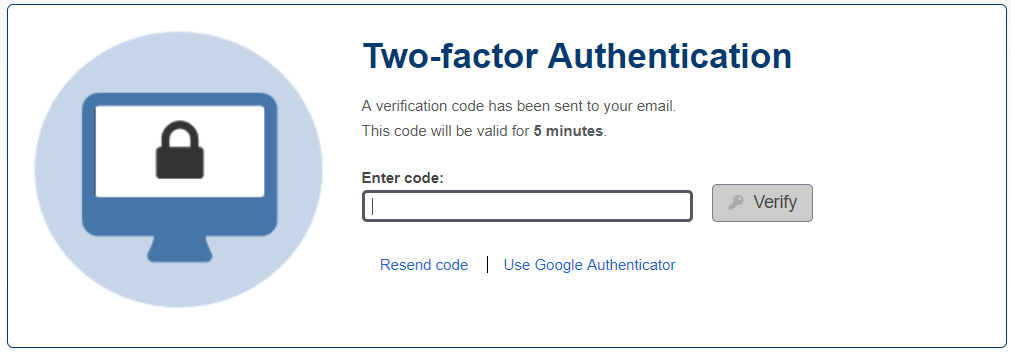
If your account is configured to use Google Authenticator, a similar page appears. Open the Google Authenticator app on your smartphone. Enter the code assigned by your app and click Verify. Once you configure Google Authenticator for your account, you can switch between authentication methods as needed.
See: Manage your LabOnline Account for information on how to configure your account for Two-factor authentication.
Sign Out
To log out of LabOnline, click Sign Out in the upper right corner of any LabOnline page.
